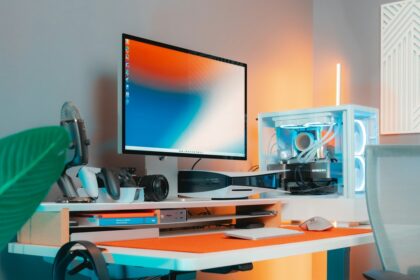
Learn how refresh rate, resolution, VRR and HDR differ, then check the connections and settings that make a gaming monitor work with your PC or console.
A gaming monitor can advertise a high refresh rate, fast response time and HDR on the same box, yet those specifications describe different things. The useful question is how the screen will work with your PC or console, your games and the place where you play.
Start with a familiar situation: a new monitor is connected, a game runs, but the image still feels much like the old screen. Before shopping for another upgrade, check the selected output mode and the game’s performance. A display cannot show a feature that the rest of the setup is not delivering.
Separate the Five Main Specifications
Resolution describes the pixel dimensions of the image. Refresh rate, measured in hertz, describes how often the display refreshes. Frame rate describes the images produced by the game. Response time concerns how quickly pixels change, while input latency covers the delay through the interaction and display chain. Keep those questions separate when comparing products.
Microsoft’s refresh-rate guide defines a 60Hz display as refreshing 60 times each second. Windows also lets you inspect the selected display mode. That makes the settings screen a useful first stop after connecting a monitor, especially when several screens are attached.
| Specification | What to Ask | Avoid Assuming |
|---|---|---|
| Resolution | Will the text and game image suit this screen size and viewing distance? | A higher pixel count guarantees higher frame rates |
| Refresh rate | Can the source output this rate at the resolution I want? | The advertised maximum is already selected |
| VRR | Do the screen, source and connection support a compatible mode? | Every input supports identical features |
| HDR | What brightness, contrast and certification evidence is available? | Accepting an HDR signal guarantees strong HDR presentation |
Make a shortlist using the exact model numbers, including suffixes. Similar names can refer to different screen sizes, connections or panels. Keep a copy of the manufacturer’s specification table so you can check the advertised configuration against the ports you actually plan to use.
Match Refresh Rate to the Games You Play
A higher refresh ceiling gives the display more opportunities to present new images. It does not make the game render faster. If a game produces 60 frames per second, connecting a 240Hz monitor does not create another 180 unique game frames each second.
The timing can be expressed with simple arithmetic: 1,000 milliseconds divided by 60 is about 16.7 milliseconds per refresh; dividing by 120 gives about 8.3 milliseconds, and dividing by 240 gives about 4.2 milliseconds. These are refresh intervals, not measurements of a monitor’s total input lag or a guarantee about your reaction time.
A player concentrating on competitive shooters might give refresh rate and motion clarity a high priority. Someone enjoying strategy games and reading small interface text may value resolution and comfortable sizing more. A mixed library calls for a balance based on what occupies most of your actual playing time.
Check performance in the games you intend to keep playing. Write down the resolution, graphics settings and typical frame-rate range. Use your own representative sessions rather than a single peak reading from a quiet menu. Those observations help you decide whether a higher refresh ceiling will be useful immediately or primarily leave room for a later PC upgrade.
Choose Resolution and Size Together
Look at the whole desktop arrangement. Measure the available desk width, the depth of the stand and your usual viewing distance. A large screen can be appealing for a game while making a cramped desk awkward for everyday use.
For a PC, try the resolution you are considering in a comparable workload before committing to higher rendering demands. For a console, check the output modes supported by the exact screen and its HDMI inputs. The display’s PC specification does not automatically describe every mode available from a console.
Also inspect text and interface size. In a shop or during the return period, open the kinds of menus, maps and documents you actually read. A photograph of a colourful game scene tells you little about whether small inventory labels will be comfortable at your desk.
Consider practical connections alongside the panel: where a headset plugs in, whether speakers are needed and how you will switch between a work laptop and a console. A missing input or inconvenient stand can matter more every day than a specification you rarely use.
Understand What Variable Refresh Rate Does
Variable refresh rate, or VRR, lets a compatible display adjust its refresh timing to the game’s output. NVIDIA’s G-SYNC documentation describes matching monitor refresh to GPU frame rate to reduce tearing and stutter. Compatible hardware and supported modes are required.
Treat a VRR label as a starting point for a compatibility check. Inspect the monitor’s supported inputs and operating range, then the graphics hardware or console requirements. A feature working through one connection does not prove it works through another.
Sony introduced PS5 VRR support in 2022 for HDMI 2.1 VRR-compatible displays. Its announcement also explains that results vary by game, screen and visual mode. That is a more useful expectation than treating VRR as a cure for every performance issue.
When evaluating it, use a familiar scene with visible camera movement. Compare the intended mode with the feature enabled and disabled, recording which setting you changed. If a problem appears only in one combination, keep the exact combination in your support notes rather than concluding that the whole monitor is defective.
Read HDR Claims Beyond the Logo
HDR presentation involves brightness, dark detail and colour as well as accepting an HDR signal. VESA’s certification criteria assess several aspects, including peak and sustained luminance, black levels and dimming. A certification tier is evidence about specified tests; it is not a review of every game on that monitor.
Look for the exact certification and the manufacturer’s explanation of the panel’s capabilities. Avoid reducing the decision to a single brightness number. A bright highlight in a dark scene and a bright image across the whole screen are different viewing situations.
Room lighting matters to how you use the display. Test the monitor at the brightness you can comfortably sustain for a normal session. Check whether reflections, nearby windows or a desk lamp make dark scenes difficult to read before increasing every picture control.
Use the platform and game’s own HDR adjustment screens where provided. Keep a record of changes, and compare a familiar scene after each one. Copying somebody else’s calibration values assumes their screen, room and preferences match yours; an adjustment procedure is more transferable than a list of numbers.
Check the Entire Connection Path
List every device between the source and the display: cable, adapter, dock, capture device or receiver. Check supported modes for the whole route. If a desired option is missing, a direct connection is a useful diagnostic comparison before changing several software settings.
Sony’s video-output guide provides a place to inspect connected-display information, VRR, HDR and 120Hz settings on PS5. On Windows, Advanced display shows the selected screen’s current resolution and refresh rate. These are checks of the actual output, not just the monitor’s marketing specification.
If two monitors are connected, confirm you are changing the intended one. Label the ports in your notes if necessary. A screenshot of the selected output and the screen’s own information panel makes a more useful record than simply saying that a cable is HDMI.
Follow the equipment manufacturer’s supported configuration when replacing a cable or using an adapter. Buy to meet the required mode, and keep the packaging until that mode has been verified. There is little value in troubleshooting an unverified chain of new accessories at the same time.
Set Up and Check a New Monitor
- Connect the PC or console directly using a supported port and cable.
- Select the correct screen and inspect the active resolution and refresh rate.
- Choose a supported output mode, then confirm it is still selected after applying it.
- Enable compatible VRR and HDR features only where the connected setup supports them.
- Use a familiar game to inspect camera motion, text, dark detail and the game’s reported performance.
- Change one setting at a time and keep notes of any flicker, blur or missing output mode.
Start from a documented, reproducible configuration. If the screen has several picture presets, record which one you chose. Save separate notes for a PC and a console rather than assuming both sources use identical modes.
NVIDIA’s latency guidance cautions that excessive overdrive can create distracting visual effects. Begin with the manufacturer’s normal response-time setting and inspect motion before selecting the most aggressive option simply because its name sounds faster.
Make the Purchase Decision About Your Setup
Write a short requirements list before comparing discounts. Include the source device, preferred resolution, useful refresh range, required ports and desk limits. Then separate essential features from optional ones. That prevents an attractive maximum refresh rate from distracting you from a missing connection.
During the return period, test the activities you actually bought the screen for. Try a fast game, a slower game with detailed menus and normal desktop use if relevant. Inspect the result at your usual distance and session brightness. Keep a dated record of any problem and contact the retailer or manufacturer with the exact model and mode.
A good match is a screen whose useful features your setup can deliver consistently. Leave room in the budget for the practical pieces that make it usable: a suitable cable, comfortable placement and, if needed, a stable mounting arrangement.
Updated October 24, 2026: We reviewed the setup references and added a distinction from our newer graphics guide: rendering options affect the game’s output before the display presents it. We explained upscaling and frame generation separately. This link was added in October; the monitor principles above were established by the May edition.