Learn how upscaling and frame generation affect image quality, FPS and input delay, then use a simple checklist to choose settings for your PC or handheld.
You open a new PC game and find separate switches for DLSS, FSR, XeSS, frame generation and a list of quality presets. Several promise a smoother game, but they do different jobs. Choosing well starts with knowing whether a setting changes how each frame is rendered, adds frames or reduces delay.
The naming has become more complicated in 2026. NVIDIA’s October 13 DLSS update covered changes to neural rendering and a frame-generation performance beta. AMD’s FSR and Intel’s XeSS also combine several technologies under a shared name. A single version number no longer tells you everything your graphics card can enable.
This beginner’s guide explains the settings you are likely to encounter and a repeatable way to compare them on your own screen. It focuses on image quality, smoothness and control response, rather than declaring a universal winner between brands or presenting results from hardware we have tested.
- Separate the features: upscaling reconstructs the picture, while frame generation adds displayed frames and latency tools address another part of the experience.
- Check the complete setup: the game, graphics card, driver and specific feature determine support, so a shared brand name does not guarantee every option.
- Build a usable baseline: choose a comfortable frame rate and image quality before testing frame generation, then compare moving scenes and controls as well as the FPS counter.
What Upscaling Does to a Game’s Resolution
A game has a rendering resolution and an output resolution. The first describes the image the game initially draws; the second describes the image sent to your display. Upscaling allows the game to draw a smaller image and reconstruct it for the larger output.
As an illustrative example, a 1920×1080 render contains about 2.1 million pixels, while a 3840×2160 output contains about 8.3 million. Rendering fewer pixels can reduce graphics work, although reconstruction has its own cost. Those figures explain the basic trade-off; they do not predict a particular game’s performance gain.
Modern temporal upscalers can use information from previous frames alongside data supplied by the game. AMD’s FSR 2 documentation, for example, describes inputs including color, depth and motion information. This is more involved than stretching a small screenshot to fill a monitor.
The reconstruction still has to cope with movement, fine detail and newly revealed parts of a scene. Look at how the game behaves while you play: a sharp still image can hide unstable foliage, trails behind moving objects or details that break up when the camera turns.
DLSS, FSR and XeSS Are Families of Features
DLSS is NVIDIA’s technology family, FSR is AMD’s and XeSS is Intel’s. Each name can cover more than an upscaler. Read the full option label, including whether it refers to super resolution, frame generation or another effect.
| Feature | What It Changes | What to Evaluate |
|---|---|---|
| Super resolution | Reconstructs a higher-resolution image from a lower-resolution render | Image detail, stability and performance |
| Frame generation | Adds synthesized frames between rendered frames | Motion smoothness, artifacts and control response |
| Native anti-aliasing | Processes an image rendered at the target resolution | Edge quality and performance cost |
| Ray reconstruction | Reconstructs ray-traced effects using specialized processing | Lighting detail, stability and game support |
| Latency reduction | Reduces supported parts of the input-to-display pipeline | Responsiveness, rather than FPS alone |
NVIDIA’s hardware table lists Super Resolution across GeForce RTX 20, 30, 40 and 50 Series GPUs. Frame Generation is listed for RTX 40 and 50 Series, while its newer Dynamic Multi Frame Generation and 3D-Guided Neural Rendering features are listed for RTX 50 Series. Game support is still required.
AMD’s FSR overview distinguishes older versions from the newer Redstone suite. Some older upscalers support a broad range of hardware, while newer machine-learning features have their own requirements. Do not treat a game offering FSR 2 as proof that it can enable every newer FSR feature.
Intel’s XeSS documentation similarly separates Super Resolution, Frame Generation and Xe Low Latency. It documents cross-vendor paths for supported hardware, while Multi Frame Generation is limited to Intel devices. Compatibility needs checking for the exact feature and graphics API.
Quality, Balanced and Performance Modes
An upscaling preset usually changes how much source detail the system starts with. Quality generally prioritizes the reconstructed image; Performance generally starts from a lower rendering resolution to reduce more graphics work. Balanced sits between those aims, while available names vary by implementation.
These labels are not a universal measurement scale. One technology’s Quality preset need not use the same rendering ratio as another’s, and different versions can change the available choices. Compare the result at the same output resolution instead of assuming matching preset names produce identical conditions.
Begin with Quality and inspect a scene representative of the game. If performance remains below your target, try Balanced and then Performance. Check distant detail, thin wires, hair, vegetation and movement. Keep the least aggressive mode that meets your needs rather than selecting a lower resolution simply because it raises the counter.
A native anti-aliasing option serves a different purpose. NVIDIA’s DLAA and comparable native-AA modes work at the target rendering resolution, concentrating on image treatment rather than the usual lower-resolution performance trade-off. They are worth comparing when you already have enough performance, but should not be assumed to make a slow game faster.
At lower output resolutions, an aggressive preset leaves less source detail to reconstruct. Judge it on the display you actually use and at your normal viewing distance. A setting that suits a large 4K display can be a poor match for a lower-resolution handheld screen.
Frame Generation, FPS and Input Delay
Frame generation creates additional images between frames produced by the game’s rendering process. It can make motion appear smoother, but it does not run an additional complete game simulation for every synthesized image. More displayed frames and more frequent input-driven rendering are different things.
Multi Frame Generation adds more than one synthesized frame per rendered frame. An advertised multiplier describes the presentation approach, not a guaranteed multiplication of every part of performance. The generation work also consumes resources, so the starting rendered frame rate can change when it is enabled.
Measure the baseline with your chosen upscaling mode active and frame generation disabled. Then enable generation and compare both the displayed counter and how movement, aiming and menus feel. A low baseline with a much higher displayed total can still feel slow to control.
AMD’s current generation guidance illustrates why requirements are version-specific: its documentation identifies different input-frame-rate design points for older and newer FSR implementations. There is no single minimum FPS rule that accurately describes every frame-generation technology. Follow the guidance for the version the game actually uses.
Latency tools address responsiveness separately. NVIDIA’s Reflex overview describes reducing system delay, while Intel includes Xe Low Latency in its XeSS stack. These tools can improve the supported pipeline, but an FPS number alone still cannot tell you the complete delay between pressing a button and seeing the response.
Ray Reconstruction and DLSS 5 Are Separate Decisions
Ray tracing models lighting effects with additional computational work. Reconstruction and denoising help produce a usable image from the sampled results. Options such as Ray Reconstruction or FSR Ray Regeneration belong to that part of the graphics pipeline, rather than simply being another quality preset for an upscaler.
DLSS 5’s 3D-Guided Neural Rendering is another distinct feature. NVIDIA describes it as changing lighting and materials in supported games under developer control. It should be evaluated for its effect on the appearance of the scene, alongside its performance cost; it is not a requirement for using ordinary DLSS Super Resolution.
If a game offers several of these settings, change one at a time. Compare lighting on faces, reflections, moving shadows and objects entering the screen. Decide whether you prefer the visual result before combining it with a different upscaling preset or frame-generation multiplier.
Keep the game’s support and release status in view. A feature demonstrated in a trailer or announced for a future update is not necessarily available in the version you have installed. A new graphics driver does not by itself establish that every game now supports the feature.
A Simple Checklist for Choosing Your Settings
Use a repeatable scene with movement and some demanding action. Record your output resolution, preset and frame-generation state before comparing changes. A short playable route is more informative than staring at a quiet menu.
- Confirm support. Check the game’s settings and the vendor’s requirements for your exact GPU. Intel’s enablement guide, for example, directs players to supported games and their graphics options.
- Set the output resolution. Start with the resolution you intend to use on your display and keep it consistent through the comparison.
- Build a baseline. Disable frame generation and choose graphics settings that let you assess normal control response. Note whether a frame-rate cap or synchronization setting is active.
- Compare upscaling modes. Begin with Quality, then try a more aggressive preset only if you need the performance. Repeat the same camera movement and gameplay.
- Inspect motion and controls. Look for trails, unstable fine detail and unreadable moving interfaces. Judge aiming or steering, not only the average FPS.
- Test frame generation separately. Enable a supported mode, then compare smoothness and response. Keep it only if the overall experience improves for the game you play.
- Save the useful result. Record the settings or use a per-game profile where supported, then check them again after a major game or driver update.
You do not have to enable every available feature. For a competitive shooter, clear motion and direct controls may matter more to you than an especially high displayed counter. A slower single-player adventure can leave more room to prioritize presentation. Make the comparison around the actions you actually perform.
Fix Blur, Ghosting and Unstable Motion
If the image is too soft, first check the output resolution and upscaling preset. Move toward a higher-quality preset before increasing sharpening heavily. Sharpening can emphasize edges, but it cannot reliably restore information missing from a very low-resolution render.
If moving objects leave visible trails, compare the same scene with another supported upscaler or at native rendering. This helps identify whether the issue follows the reconstruction method or remains part of the game’s broader rendering. Keep the rest of the settings unchanged during that check.
If the problem appears only with frame generation enabled, inspect fast camera turns and interface elements. Compare a lower generation multiplier where available. Disabling generation is also a useful diagnostic step when displayed FPS rises but the motion or controls become less comfortable.
Use a supported game update and official driver before considering advanced overrides. Some vendor applications can update supported technology implementations, but that is different from a universal upgrade for every title. For a beginner, a known working in-game configuration is the clearest starting point.
Preserve your original settings so you can reverse an unhelpful change. When seeking support, provide the game version, GPU, driver, output resolution and feature state. Saying only that a game looks blurry leaves out the information needed to reproduce the problem.
Handhelds, CPU Limits and Performance Claims
Upscaling is most useful when reducing graphics work addresses the limit you are hitting. If the CPU or another part of the system is holding the game back, lowering rendering resolution may produce little improvement in the rendered frame rate. A frame-rate cap can also conceal a change in available performance.
Compare a demanding scene and watch whether lowering resolution actually helps. Avoid diagnosing every slowdown from a single utilization number. Shader compilation, asset loading and memory pressure can create problems that an upscaling toggle does not resolve.
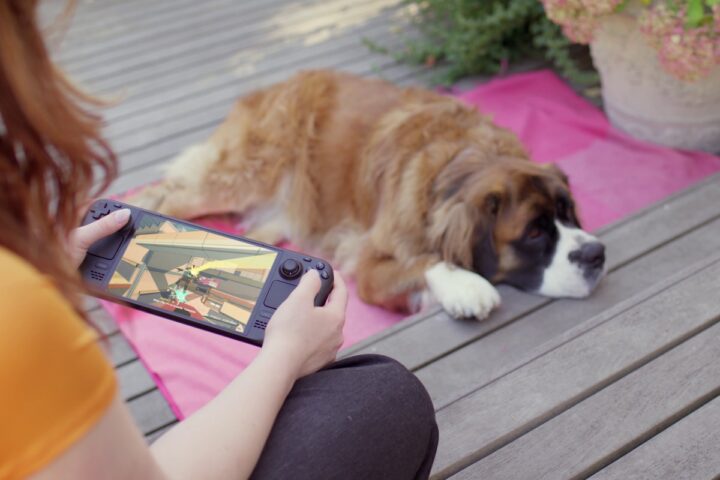
On a handheld, battery, heat and power settings add another trade-off. A less demanding configuration can be used to pursue a higher frame rate or, with an appropriate cap, reduce workload; the outcome depends on the device and game. We previously explained how to compare handheld power modes and unplugged sessions.
Read performance charts with the settings attached. Native rendering, upscaling alone and upscaling plus frame generation are three different conditions. AMD’s FSR 3 documentation explains how rendered and interpolated frames are combined; a headline total should not be mistaken for the base rendering rate.
Keep display refresh rate in the comparison as well. A screen’s refresh rate is not a promise that the game can produce the same number of rendered frames. Choose settings for a stable, comfortable experience on the display in front of you, rather than chasing a multiplier detached from its conditions.
Frequently Asked Questions
Which is best: DLSS, FSR or XeSS?
There is no single answer for every game and GPU. Compare the supported implementations in the same moving scene, at the same output resolution, and judge image quality alongside performance and controls.
Can I use FSR or XeSS on an NVIDIA graphics card?
Some versions support compatible hardware from other vendors. Check the exact feature and version; support for an upscaler does not automatically include its frame-generation modes.
Does frame generation make 30 FPS feel exactly like native 60 FPS?
No. It can improve displayed motion, but the rendering baseline, input pipeline and generation overhead still affect responsiveness. Test the result instead of treating the counter as an equivalent measurement.
Should I always select Performance mode?
No. Start with a quality-focused preset and lower the source resolution only when the performance benefit is worth the visual trade-off on your screen.
Do I need a new GPU to use a newer DLSS model?
It depends on the feature. A model update for an existing supported function and a new hardware-restricted feature are different changes. Check NVIDIA’s compatibility table and the game’s implementation before buying hardware.