Learn how to choose gaming storage, check PC and console compatibility, plan SSD capacity and move games without confusing installations with saves.
You have an evening free, a new game to install and a storage warning blocking the download. Buying a larger drive sounds like the obvious answer. But the right solution depends on whether you need room for more installed games, a faster place to run them, or somewhere to keep titles you are not currently playing.
For PC, PlayStation 5 and Xbox Series X and S players in September 2026, capacity and compatibility are separate decisions. A drive can hold a game without being an approved place to launch it. This guide explains the differences, shows how to plan your space and gives you a practical route through an upgrade without turning it into a complete PC rebuild.
Understand SSDs, Hard Drives and Memory
Storage keeps installed games and other files between sessions. RAM is working memory used while software runs. Adding a larger SSD increases storage capacity; it does not add RAM. When a game lists both memory and storage requirements, read those as separate specifications.
An SSD uses electronic memory rather than the spinning platters of a hard disk drive. Kingston’s SSD FAQ explains the underlying distinction. For a beginner, the important next step is to identify the drive already inside the machine instead of assuming that every slow-loading computer still has a hard drive.
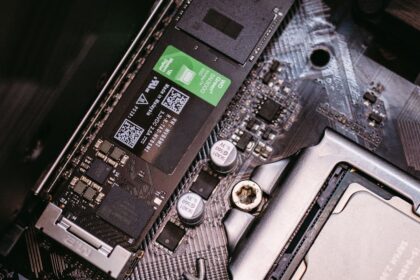
M.2 describes a physical form factor, while SATA and NVMe describe different storage technologies. An M.2-shaped drive is not automatically suitable for every M.2 slot. Kingston’s compatibility guide distinguishes SATA-based and NVMe-based M.2 drives; the computer’s documentation determines what fits and works.
| Term | What It Means | First Check |
|---|---|---|
| Hard disk drive (HDD) | Mechanical storage with spinning platters | Check whether the particular game permits HDD installation |
| SATA SSD | Solid-state storage using SATA; commonly found in 2.5-inch drives and some M.2 drives | Match the connection and physical space in the computer |
| NVMe SSD | Solid-state storage using NVMe, commonly through a PCIe M.2 slot | Check the supported protocol, drive length and cooling clearance |
| Console expansion storage | A platform-specific route to additional game storage | Follow the console’s rules for playing games, not just storing files |
Plan Capacity Around the Games You Actually Play
Open the platform’s storage screen before shopping. Record the total available space, the free space and the installed size of the games you want to keep. Use installed sizes rather than treating the download size as a promise about the finished installation.
Divide your library into three groups: games you play regularly, games you expect to return to soon and games you are comfortable downloading again. Keep the first group convenient. The third group is a better starting point for clearing space than deleting something simply because it has the largest file size.
Also decide what an archive is worth to you. Someone with a slow connection may value avoiding another download. Someone who plays only a few games each month may prefer a small active library. Neither situation calls for buying enough capacity to hold every game on the account indefinitely.
Do not plan to fill a new drive to its advertised limit immediately. The operating system, installed applications and future updates also matter. Rather than applying one universal percentage, leave room for the particular installation or update your platform says it needs. Check again before a large download starts.
Know What Faster Storage Can Change
Storage performance is about supplying data. It can affect loading, installation and how quickly a game can retrieve assets. It is not a substitute for a stronger graphics processor or enough system memory. If your problem is consistently low frame rates, identify that bottleneck before assuming a new SSD is the answer.
A drive’s advertised sequential speed is one specification, not a forecast of every loading screen. The game, platform and workload also matter. Avoid comparing two products only by the largest number printed on their boxes; first establish whether the current drive is inadequate for the games you play.
On Windows, Microsoft’s DirectStorage announcement describes technology developers can use to move and decompress game data more efficiently. That is a reason to check a game’s actual requirements, not to assume that every game automatically gains the same benefit from a particular SSD.
If you compare an upgrade yourself, keep the game, save point and settings consistent. Measure the same action, such as loading the same save, and record what else was running. Treat the result as a test of that setup. This guide does not present product benchmarks or claim hands-on testing of a specific drive.
Check a PC’s Exact Upgrade Requirements
Find the full PC or motherboard model, then its storage documentation. For a laptop, use the laptop manufacturer’s service information. Record the supported drive type, physical length, available slot or bay and any cooling or installation instructions. Do not order from the device’s marketing name alone.
Check whether you are adding a second drive or replacing the existing one. Adding storage for games is a different job from replacing the drive that contains Windows. A system-drive replacement needs a plan for the operating system and personal files as well as the game library.
For an M.2 upgrade, inspect the supported protocol and dimensions together. A connector that looks familiar is not enough. Also check whether a cover, thermal pad or heatsink is already part of the machine’s design before buying a drive with a bulky attached cooler.
Compare the complete cost of the upgrade: the drive, any necessary enclosure or cooling hardware and installation help if required. If you are uncomfortable opening the device, give a technician the exact model and the purpose of the upgrade. Asking for more usable game storage is clearer than asking for the fastest part available.
Choose the Right PS5 Storage Route
Sony supports compatible PCIe Gen4 x4 M.2 NVMe drives for expanding PS5 game storage. Its requirements list capacities from 250GB to 8TB, recommend sequential reads of at least 5,500MB/s and require effective heat dissipation. M.2 SATA drives are not supported. Check the complete dimensions, including the cooler, against Sony’s limits before purchasing.
The 8TB ceiling was already introduced in Sony’s September 2023 update; it is not a new September 2026 feature. Compatibility still matters more than capacity alone. A suitable smaller drive is more useful than a larger one that does not meet the console’s requirements.
A compatible internal M.2 expansion can run PS5 games. USB extended storage serves a different role: it can hold PS5 game installations, but they must be copied back to console or M.2 storage to play. PS4 games can run directly from supported USB extended storage.
Choose between those routes by the job. If you want more PS5 games ready to launch, investigate a compatible M.2 expansion. If you mainly want to keep completed PS5 games nearby for later, a supported USB archive may address that need. Follow Sony’s model-specific installation instructions rather than a generic PC tutorial.
Separate Xbox Expansion Cards From USB Drives
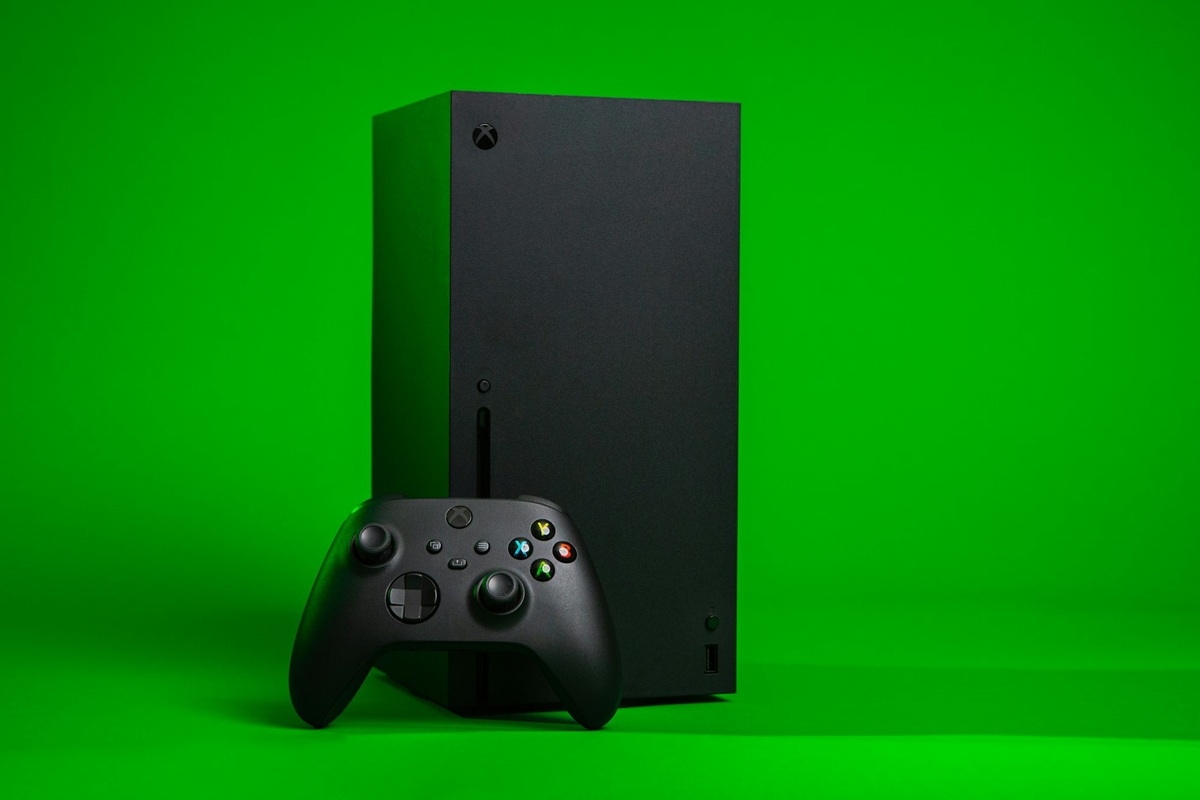
For Xbox Series X and S, Microsoft’s storage primer distinguishes the dedicated Storage Expansion Card from USB storage. The card is designed to support the console’s game-storage performance requirements. For games that require Series X and S storage, plan to use the internal SSD or a compatible expansion card.
A supported USB drive can store those installations for transfer later and can run supported backward-compatible games. It is not interchangeable with a dedicated expansion card merely because both products are described as external storage. Check the particular game’s requirements and any message shown by the console.
When choosing, describe your intended use in one sentence: “I want my current games ready to launch,” or “I want to avoid downloading older installations again.” The first points toward playable expansion space; the second may be an archiving problem. That distinction can prevent buying the wrong type of accessory.
Read compatibility information for the exact product. A label saying a drive works with Xbox may refer to a USB storage role rather than direct play of every Series game. Do not transfer PC M.2 or PS5 installation advice to an Xbox console.
Move Games Through the Platform’s Tools
Use the launcher or console’s storage controls to relocate an installation. Valve documents moving a Steam game through Library > Properties > Installed Files > Move Install Folder, after another Steam library location has been configured. This avoids treating a manual folder drag as a complete migration.
- Confirm that the destination can run the particular game, or decide that you only need an archive.
- Check available space and identify the source and destination drives by name.
- Use the platform’s move or transfer command for the installation.
- Let the transfer finish before disconnecting a device or shutting down.
- Launch the game from the new location and confirm that the expected save is available.
Game installations and saved progress should be checked separately. Before an upgrade, confirm where the title keeps saves and whether its cloud synchronization has completed. Keeping an installation on another drive is not proof that every save or personal file has been backed up.
Formatting prepares a drive for use and can erase existing data. Inspect the destination carefully and copy anything you need elsewhere before accepting a format prompt. This is especially important when repurposing a USB drive that previously held personal documents or photographs.
Build a Simple Storage Routine
Before a large installation, inspect free space, finish pending updates and decide which inactive game can move or go. Afterward, verify the new game launches normally. Repeating that routine is more useful than discovering a space shortage shortly before a planned multiplayer session.
Keep a short record of your drives and their jobs: system and active games, a second library, or an archive. Give a removable drive a recognizable name. When troubleshooting, that makes “the racing game is on the USB archive” more useful than “it is somewhere on the extra drive.”
Revisit the plan when your habits change. An upgrade that makes sense for several large games may be unnecessary if you mostly play smaller titles. Decide using actual installations and the cost of restoring them, rather than a prediction that every future release will require the same amount of space.
Update — October 22, 2026: We have expanded this September guide with the planning example and pre-transfer checks below, reviewed the linked platform requirements, and added our newer handheld and cloud-gaming guides. The platform features described above were available before the original publication date.
October 22 Update: Calculate Space Before Moving Games
Use the free-space figure shown by the device rather than the drive’s advertised capacity. As an illustrative example, imagine 300GB is free and three desired installations are 90GB, 80GB and 70GB. They total 240GB, leaving 60GB before any additional files or update requirements. That arithmetic does not guarantee an update will fit: check the space requested by the actual platform.
For a transfer, write down the game, its current location, the destination and whether it can launch there. Check save synchronization, then move one title and test it before transferring the rest. This adds a verification step without assuming that every launcher stores progress in the installation folder.
If storage choices are part of choosing a portable device, we explained the wider hardware and compatibility checks in our handheld PC guide. If you are considering streaming instead of installing, we covered how cloud gaming changes the setup. Those October guides are later additions to this article, not sources for its September edition.